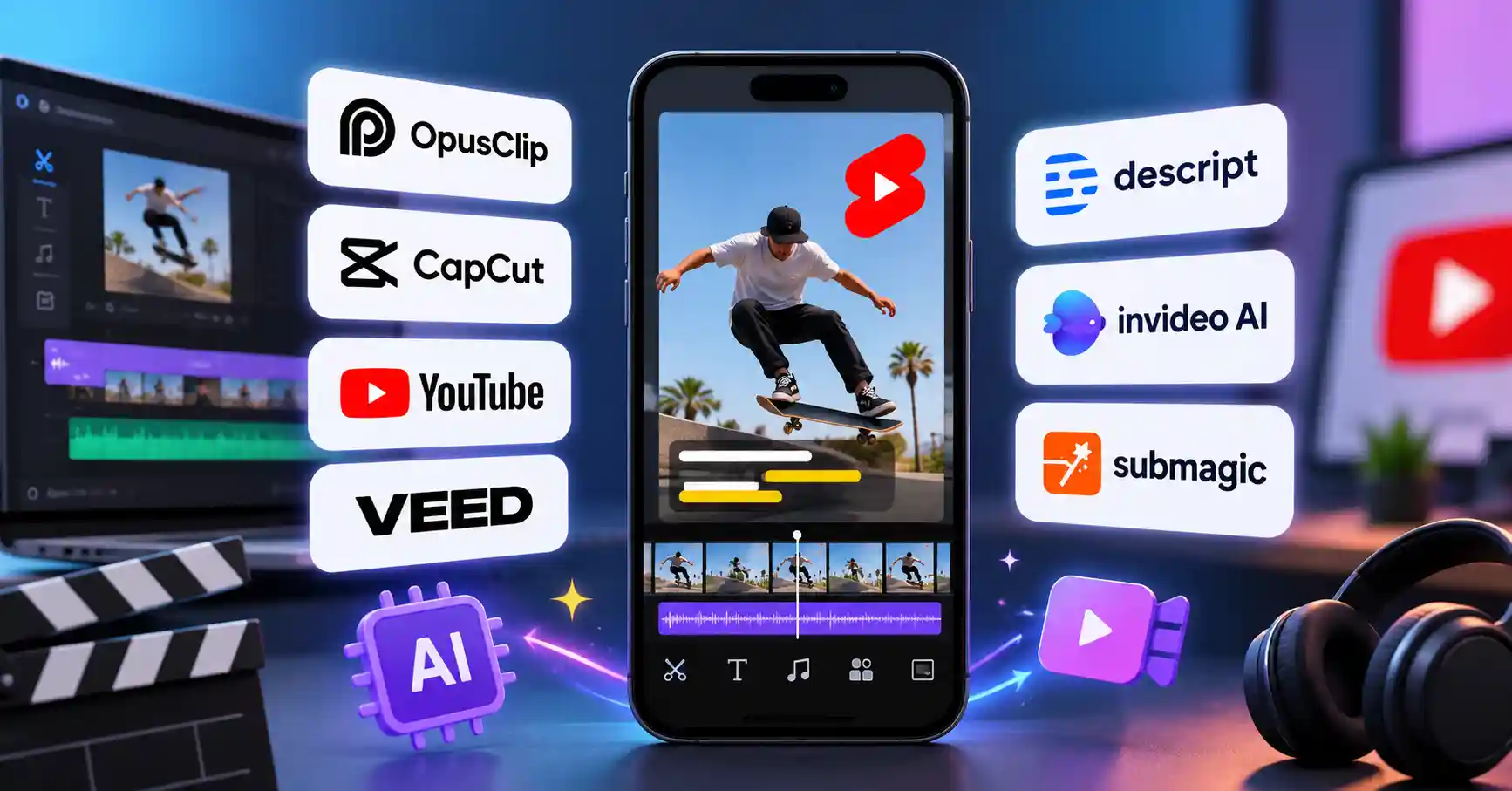
Best AI Tools for YouTube Shorts in 2026: 7 Tools Compared
Published October 24, 2026
Creating YouTube Shorts involves more than cropping a long video into a vertical format. You need a compelling opening, readable captions, engaging visuals, and a pace that keeps viewers watching. The best AI tools for YouTube Shorts can automate parts of this process, freeing up time for planning content and refining your videos.
The right tool depends on your workflow. If you publish long videos or podcasts, an AI clip generator can help identify moments worth repurposing. If you create faceless videos from scripts, a text to video platform may be a better fit. And if you prefer hands on editing, a flexible video editor gives you more control over the finished product.Explore Allaipedia's guide to AI video editing tools.
This guide compares seven tools by their features, use cases, pricing, and limitations to help you find the right fit.
What Are the Best AI Tools for YouTube Shorts?
Pricing reflects information published in US dollars as of October 24, 2026. Prices, billing terms, regional availability, and plan limits may change. Check the official pricing pages before subscribing.
7 Best AI Tools for YouTube Shorts
1. OpusClip : Best for Repurposing Long Videos
OpusClip turns longer videos into shorter clips for platforms such as YouTube Shorts, TikTok, and Instagram Reels. It uses AI to identify potential highlights, reframe footage, and generate captions.
For example, a podcaster with a 30 minute interview can use OpusClip to identify several potential clips instead of reviewing the entire recording manually. Each clip still needs an editorial review to make sure it works independently.
Pricing: The official pricing page lists a free plan with 60 credits per month. Free exports include a watermark, are limited to 1080p, and become unavailable for export after three days. The Starter plan is listed at $15 per month.
Limitation: An automatically selected highlight isn't necessarily a compelling Short. It may lack context or take too long to get to the point, so review the opening, ending, and overall message before publishing.
Best for: Podcasters, interview channels, educators, and creators who regularly publish long form videos.
2. CapCut : Best for Hands On Shorts Editing
CapCut combines a timeline editor with templates, text, effects, and AI assisted features. It's a practical choice for creators who want control over their edits rather than relying entirely on automated clip selection.
A tutorial creator, for instance, can remove pauses, add captions, highlight important words, and use zooms or overlays to make a vertical video easier to follow.
Pricing: CapCut offers a free plan with basic editing features and templates. Its US pricing page displays Pro at $19.99 per month, including AI credits and premium features. Availability and final prices may vary by account and region.
Limitation: Some features require a paid plan, and unmodified templates can make videos look generic. Check caption accuracy and export settings before publishing.
Best for: Beginners, solo creators, and social media marketers who want creative control without a complicated editing workflow.
3. YouTube Shorts AI Tools : Best for Native Creation
YouTube's AI creation features let eligible users generate images and short video clips from prompts for use in Shorts. The documentation describes standalone AI generated clips of up to 10 seconds, along with features such as generated backgrounds.
These tools are useful when you need a visual for a quick explainer, a creative background, or an experimental Short without opening a separate video generation platform.
Pricing: The features are built into YouTube's creation experience. The cited documentation doesn't specify a separate subscription price for using them.
Limitation: Availability varies by feature and location, and generated content can contain errors. YouTube also automatically discloses AI use for creations made with its own AI features.
Best for: Creators who want to experiment with AI generated visuals directly in YouTube.
4. VEED : Best for Browser Based Editing
VEED is an online video editor for creators who want to edit footage and add subtitles without relying on desktop software. Marketing teams can use it to prepare short videos from product demonstrations, interviews, and recorded explainers.
Its browser based workflow keeps editing and caption preparation in one place, making it a practical option for straightforward projects.
Pricing: VEED's official help documentation confirms that exports from free accounts, including exports made without signing in, carry a watermark. Paid Lite, Pro, and Enterprise subscriptions allow watermark free exports.
Limitation: Check plan restrictions for resolution, AI features, and exports before subscribing. A browser editor may also be less flexible than dedicated desktop software for complex projects.
Best for: Marketers, small businesses, and creators who prefer editing online.
5. Descript : Best for Talking Head Videos and Interviews
Descript uses transcript based editing, allowing you to edit spoken content through its text transcript. This works particularly well for tutorials, interviews, commentary, and educational videos where the spoken message drives the story.
Suppose you've recorded a five minute explanation of a software feature. You can review the transcript, remove unnecessary sections, and shape the video around the clearest parts of the explanation before polishing the visuals.
Pricing: Descript offers a free plan with limited transcription and export capabilities. Paid plans provide expanded allowances and features consult the official pricing page for current limits.
Limitation: Editing through a transcript doesn't eliminate the need for visual adjustments. You may still need to change framing, add B roll, and fix cuts that sound natural but look awkward.
Best for: Educators, consultants, podcasters, and creators whose videos rely on spoken explanations.
6. InVideo AI : Best for Script to Video Creation
InVideo AI helps creators build videos from written prompts rather than recording every scene themselves. Its AI assisted generation and editing features vary by subscription plan.
For example, a small business owner could draft a product explainer, describe the desired visuals, and generate a first version. They could then adjust the pacing, replace unsuitable footage, and refine the message to match the brand.
Pricing: InVideo AI offers limited free access with credits that reset weekly. Its official pricing page lists a Starter plan at $10 per seat per month with annual billing. Monthly billing and allowances differ, and generation consumes credits depending on the model and task.
Limitation: Generated footage may not match the script precisely. Check factual claims, visuals, voiceovers, and licensing terms before publishing.
Best for: Faceless video creators, entrepreneurs, and marketers producing explainers or promotional content.
7. Submagic : Best for Animated Captions
Submagic focuses on short form video enhancements, including automatic captions, text based trimming, and visual improvements. Depending on the plan, it also offers features such as caption translation, audio cleanup, and publishing tools.
It's useful when you already have good footage but want to make spoken content easier to follow on mobile screens.
Pricing: The official pricing page lists the Starter plan at $19 per month, with 45 credits and up to 15 videos under the stated allowance. It includes 1080p exports without a watermark. Annual billing offers a lower monthly equivalent.
Limitation: Animated captions and effects can't rescue weak content. If you need detailed timeline editing or original footage generation, another tool may suit you better.
Best for: Talking head creators, coaches, and marketers who want consistent captions and a polished short form style.
How to Choose an AI YouTube Shorts Generator
The best AI YouTube Shorts generator depends on what you already have and how much control you want over the final video.
Before paying for a subscription, test a representative video and review the exported file:not just the preview. Check watermark restrictions, credit consumption, caption accuracy, vertical framing, and support for the languages you use.
If you're building a more complete channel workflow, the guide to AI tools for YouTube creators offers additional context.
How to Create YouTube Shorts Using AI
You don't need seven subscriptions to build an efficient workflow. Start with one tool that addresses your biggest production challenge.
Choose a clear idea. Write a short script or identify the strongest moment in an existing recording.
Generate or select footage. Use an AI clip generator for long videos or a text to video platform when starting with a prompt.
Edit for mobile viewing. Strengthen the opening, remove unnecessary pauses, and keep the subject visible in vertical framing.
Add and proofread captions. Correct names, technical terms, punctuation, and translations.
Review the final export. Check audio levels, pacing, visual consistency, content rights, and any required synthetic content disclosures.
Publish and learn. Use audience retention data and other available YouTube Analytics metrics to identify where viewers lose interest.
For example, a software tutorial creator could record a detailed walkthrough, use OpusClip to identify potential highlights, and finish the strongest clips in CapCut. This combines automation with editorial control without requiring a separate subscription for every stage.
Limitations of AI Tools for YouTube Shorts
AI can reduce repetitive work, but it doesn't replace editorial judgment.
Context matters. Automated clipping can remove an important qualification or make a statement misleading.
Captions need checking. Speech recognition can misinterpret accents, product names, and technical vocabulary.
Generated visuals need review. AI imagery and video can contain errors or show details that don't match the narration.
Originality still matters. Repetitive scripts and generic visuals can make a channel less distinctive. Using AI doesn't guarantee YouTube monetization eligibility.
Rights and disclosures matter. Check the terms for generated assets, music, and third party footage. Follow YouTube's disclosure requirements where applicable.
The aim isn't to automate every decision. Use AI where it saves time, while retaining human oversight of accuracy, storytelling, and the finished video.
FAQ’s
1. What is the best AI tool for YouTube Shorts?
It depends on your workflow. OpusClip is a good candidate for repurposing long videos, CapCut suits hands on editing, and InVideo AI is worth considering for prompt based video creation. Compare the output quality and plan limits before choosing.
2. Which AI tools can create YouTube Shorts for free?
CapCut offers a free editing plan, OpusClip provides 60 monthly credits with export restrictions, and YouTube offers built in AI creation features to eligible users. Descript and InVideo AI also provide limited free access. Check each tool's current terms before starting.
3. Can AI turn a long YouTube video into Shorts automatically?
Yes. Tools such as OpusClip can identify potential highlights, reframe footage, and generate captions. However, review each clip to ensure it preserves the original meaning, starts at the right moment, and gives viewers enough context.
4. Can AI generated YouTube Shorts be monetized?
Using AI doesn't automatically disqualify a video from monetization. YouTube expects monetized content to provide original value and comply with its policies. Repetitive, mass produced, or minimally transformed content may be ineligible, and creators must have the necessary rights to the material they publish.
Conclusion
The best AI tool for YouTube Shorts is the one that solves your biggest production bottleneck. Choose OpusClip to repurpose long recordings, CapCut for hands on editing, or InVideo AI to create videos from prompts. For talking head content, compare Descript's transcript based editing with Submagic's caption focused workflow.
Start with one tool and test it on a real video. Judge the results by accuracy, storytelling, and editing quality:not just how quickly the software generates a clip. AI can streamline production, but your ideas and editorial decisions are what make a Short worth watching.