Pixlr Review 2026: Features, Pricing, Pros, Cons & Alternatives
Published November 14, 2026
Need to edit photos, remove backgrounds, or create marketing graphics without installing professional design software? Pixlr is worth a look. It brings traditional photo editing and AI powered tools together in a browser based platform, making it a practical option for bloggers, marketers, ecommerce sellers, and beginners.
But is Pixlr free? Are its AI features worth paying for? And how does it compare with Photoshop or Canva?
This Pixlr review covers its features, pricing, advantages, limitations, and alternatives to help you decide whether it belongs in your creative workflow.
What Is Pixlr?
Pixlr is an online photo editing and creative platform that combines conventional image editing with AI powered generation and modification tools. You can use its editors directly in a browser, with desktop and mobile applications also available.
The platform offers two main editing experiences:
Pixlr Express: Built for quick edits, filters, image adjustments, and AI assisted creative work.
Pixlr Editor: A more advanced, layer based editor for users who need greater control over their images.
The distinction matters. Express is a good starting point for beginners who want to make quick improvements, while Editor suits users working with layers, selections, and detailed adjustments.
You can explore both through the official Pixlr website.
Pixlr Features: What Can You Do With Pixlr AI?
Pixlr goes beyond basic photo editing. Its tools cover image creation, background removal, object cleanup, enhancement, and AI assisted editing.
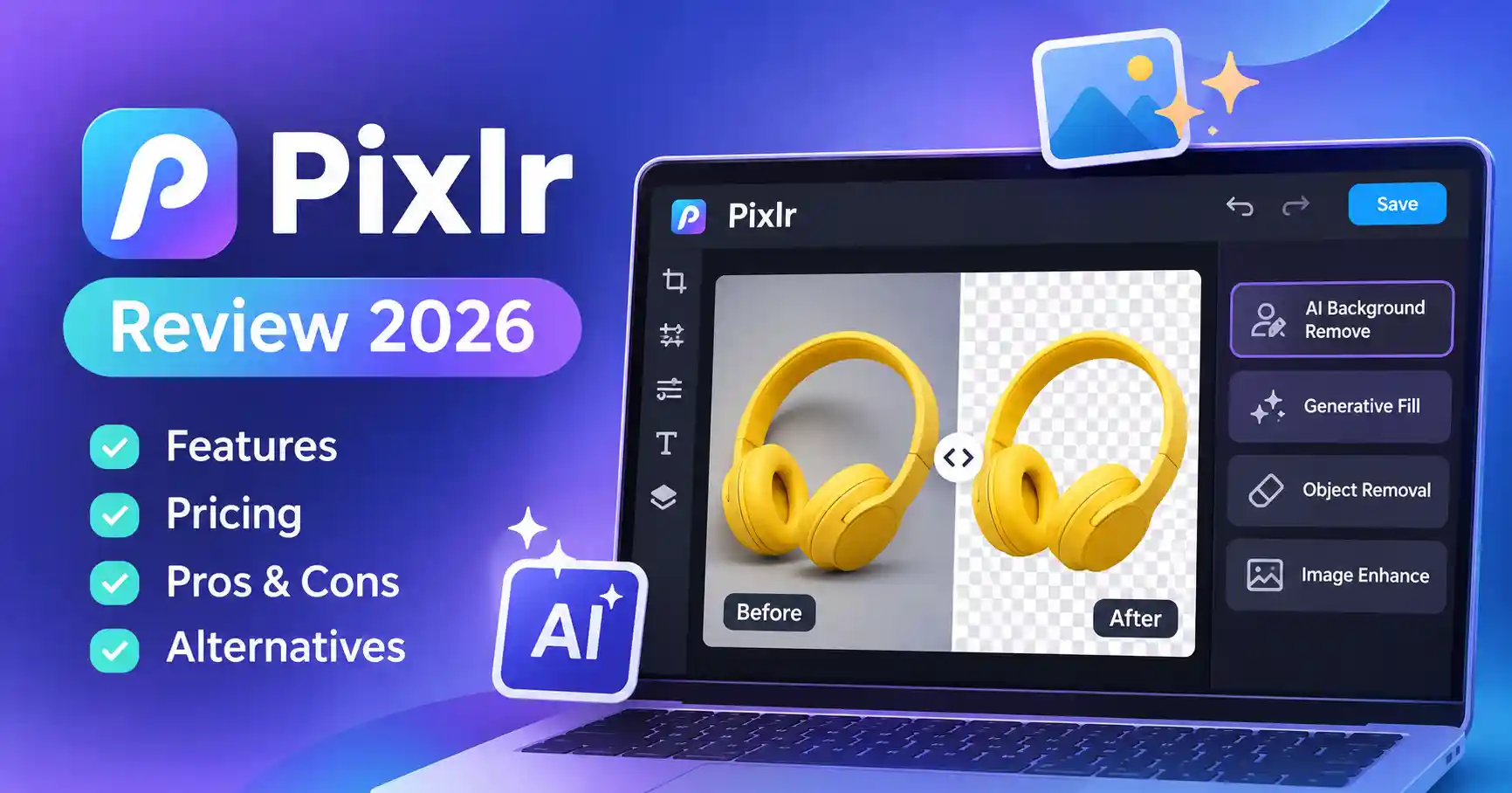
AI Background Removal
Pixlr's background remover automatically separates the main subject from its background.
For ecommerce sellers, this can simplify product photography. Bloggers can prepare cleaner visuals, while marketers can create promotional graphics without manually tracing every edge.
For instance, a small business can remove the background from a product photograph and replace it with a clean, branded backdrop.
AI Generative Fill and Object Removal
Generative Fill lets you select an area and describe what should be added or replaced. Object Removal helps eliminate unwanted elements from an image.
These features are useful for cleaning up product photos, removing distractions, or making adjustments to existing creative assets.
There is one catch: AI generated replacements don't always match the original lighting, perspective, or texture. A quick review and manual correction can make a noticeable difference before publishing.
AI Image Generator and Image Editing
Pixlr includes a text to image generator that creates visuals from prompts. You can then open generated images in Pixlr Express and continue editing them.
This combination works well for blog illustrations, creative concepts, campaign visuals, and background imagery.
If you're exploring other image generation platforms, Leonardo AI is another option worth considering for AI image generation and creative visual production.
Advanced Photo Editing
Pixlr Editor offers traditional editing tools, including:
Layers and image transformations
Text and shape tools
Color adjustments
Filters and effects
Cutouts and selections
Image resizing and cropping
These capabilities make Pixlr more than a one click AI editor. You can still make manual adjustments when automated editing doesn't deliver the result you want.
AI Upscaling and Image Enhancement
Pixlr also provides image upscaling, sharpening, and noise reduction tools.
These can improve the appearance of existing images, particularly when preparing visuals for websites or marketing campaigns. However, enhancement tools cannot reliably recover every detail missing from a low quality original.
How to Use Pixlr AI Photo Editor
Creating a marketing image with Pixlr is straightforward, even if you have little editing experience.
Open Pixlr: Visit the official website and choose Pixlr Express or Pixlr Editor.
Upload an image: Select a product photograph, blog image, or another visual asset.
Choose an editing tool: Use background removal, object removal, generative fill, or image enhancement based on what you need.
Refine the result: Adjust colors, crop the image, add text, or modify the composition.
Export your image: Download the finished visual in a suitable format for your website or campaign.
A blogger, for example, could upload a product photograph, remove its background, add a suitable backdrop, and export the image for a featured image.
The most effective approach is to let AI handle repetitive editing tasks while keeping manual control over the final design.
Pixlr Pricing: Is Pixlr Free?
Pixlr offers free access alongside paid subscriptions. The free version is useful for trying its editing tools, although regular users may run into restrictions.
Paid plans provide ad free access, additional AI credits, and expanded features.
Prices are in USD and reflect Pixlr's listed subscription rates. Annual equivalents apply when billed annually.
What Does Pixlr Free Include?
The free version lets users explore Pixlr's editing tools without purchasing a subscription.
However, free usage comes with restrictions. Pixlr documents a three save per day limit, and some advanced AI functionality requires credits or paid access.
For occasional editing, that may be enough. Anyone working on several images every day should consider whether the restrictions interfere with their workflow.
Pixlr Plus vs Premium vs Ultra
Plus: Suitable for occasional AI assisted editing and users who want basic paid access. It includes 80 monthly AI credits.
Premium: Better suited to regular creators who need broader AI model access and 1,000 monthly AI credits.
Ultra: Designed for heavier AI usage, additional generation capacity, and more extensive creative workflows.
The right subscription depends on how frequently you use AI features. Someone editing a handful of blog images each month probably doesn't need Ultra. A creator generating visuals regularly may find a larger credit allowance more useful.
Before subscribing, check the official Pixlr pricing page. Subscription details and available features can change.
Pixlr Pros and Cons
Pros
Browser based editing without requiring traditional desktop installation.
Combines conventional editing with AI powered tools.
Useful for quick background removal and image cleanup.
Suitable for beginners and experienced casual editors.
Offers several subscription options.
Supports everyday content creation workflows.
Cons
Free usage comes with restrictions.
AI features consume credits.
Advanced editing requires some familiarity with the interface.
AI generated edits may need manual corrections.
Not a complete replacement for professional desktop software.
Pixlr vs Other Photo Editing Tools
Pixlr isn't the only option for image editing. Several alternatives offer different strengths.
Pixlr vs Photoshop
Photoshop is generally better suited to professional image editing, complex compositing, and detailed creative workflows.
Pixlr is more convenient for quick browser based edits, particularly when you don't need the full depth of professional desktop software.
Pixlr vs Canva
Canva focuses on creating social media graphics, presentations, and branded marketing materials.
Pixlr, by contrast, is more focused on editing images themselves. Removing an object from a photograph is a natural fit for Pixlr, while building a promotional poster from templates may be easier in Canva.
You can also explore Canva Magic Media for AI assisted creative design.
Pixlr vs Photopea
Photopea is particularly useful when browser based layer editing and PSD compatibility are important.
Pixlr brings together AI editing and creative tools, making it appealing to users who frequently need quick visual modifications without switching between applications.
Who Should Use Pixlr?
Pixlr makes sense for several types of users:
Bloggers: Create featured images and edit article visuals.
Digital marketers: Prepare campaign graphics and promotional images.
Ecommerce sellers: Clean product photos and remove backgrounds.
Small businesses: Produce simple creative assets without hiring a designer for every task.
Beginners: Learn image editing through accessible tools.
Professional designers handling complex projects may still prefer Photoshop or other specialized software.
Pixlr Alternatives: Which Tool Should You Choose?
The best alternative depends on the work you need to accomplish:
Photopea: Choose it when layered editing and PSD compatibility matter.
Canva: Use it for templates, branded graphics, and social media designs.
Fotor: Consider it when quick photo enhancement is your priority.
Photoroom: Pick it when product photography and background workflows are central to your business.
Photoshop: Use it when advanced professional editing is essential.
More AI features don't automatically make a tool better. What matters is how well it fits your workflow, budget, and editing requirements.
FAQ’s
Is Pixlr free to use?
Yes. Pixlr offers free access to its editors, but free usage has restrictions. Paid subscriptions provide additional features, ad free access, and expanded AI credits.
Is Pixlr AI worth it?
Pixlr AI can help with background removal, object cleanup, image enhancement, and generating visual assets. Whether it's worth paying for depends on how frequently you use these tools and whether the credit allowance suits your workflow.
Is Pixlr better than Photoshop?
Pixlr is convenient for quick online editing and AI assisted image modification. Photoshop is generally better suited to advanced professional editing and complex creative projects.
Can Pixlr images be used commercially?
Pixlr's license agreement permits commercial use of AI content subject to its terms and restrictions. Users remain responsible for ensuring that their images comply with applicable laws and intellectual property rights.
Conclusion
Pixlr is a practical option for anyone who needs accessible photo editing without committing to professional desktop software.
Its biggest advantage is the combination of traditional editing tools and AI assisted features in one platform. Bloggers, marketers, ecommerce sellers, and small businesses can use it for everyday image preparation, background removal, and creative modifications.
The free version is a sensible starting point. Plus or Premium may be worth considering for regular users, while Ultra is better suited to heavier AI usage.