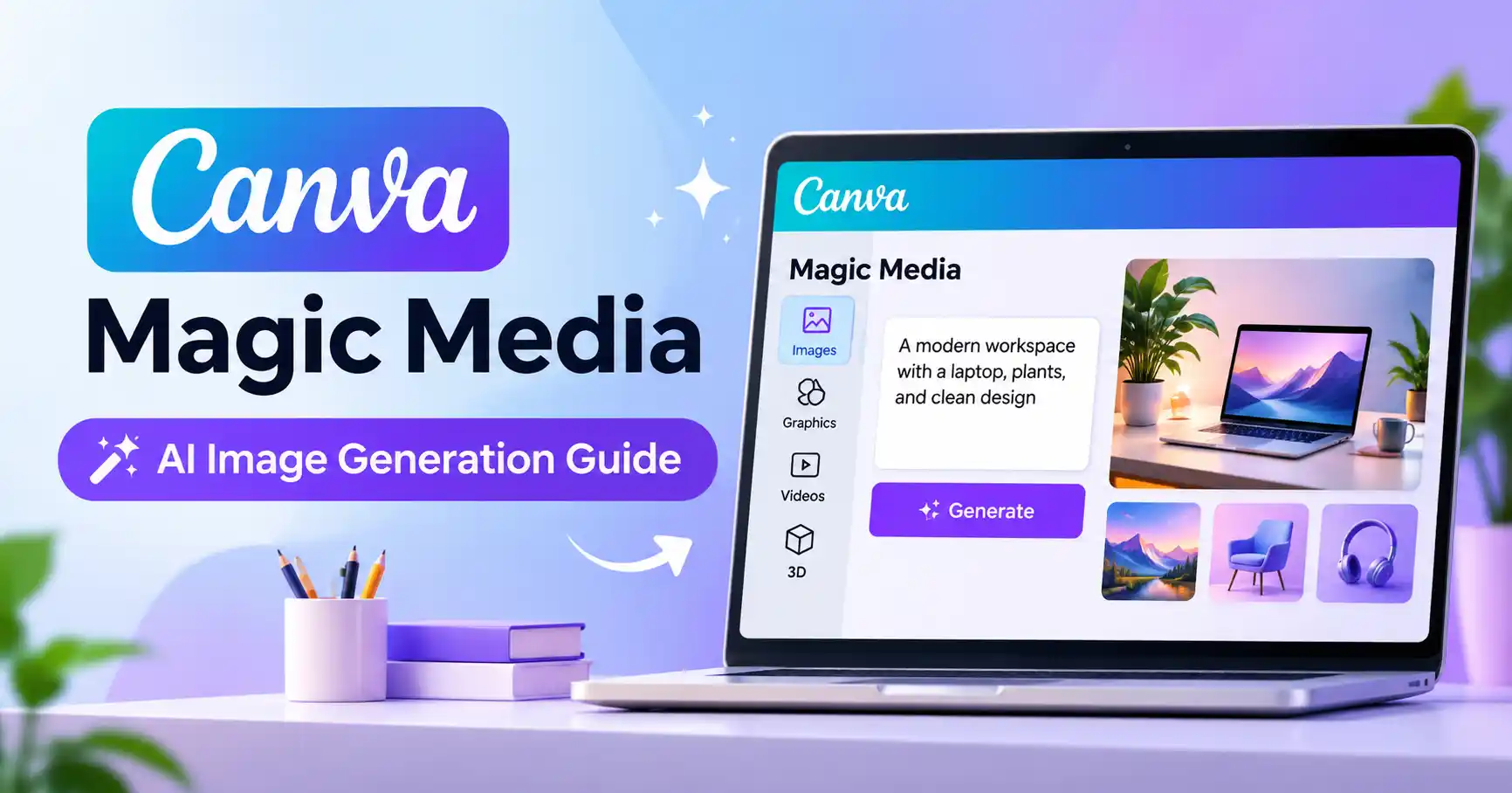
How to Use Canva Magic Media: AI Image Generation Guide
Published November 4, 2026
What Is Canva Magic Media?
Canva Magic Media is an AI powered feature that transforms text descriptions into visual assets. It lets you generate images, graphics, short video clips, and 3D elements directly within Canva.
What sets Magic Media apart from standalone AI image generators is its integration with Canva's design workflow. You can generate an image, add typography, adjust colors, incorporate brand elements, and prepare the final design for publishing without switching between applications.
Magic Media is useful for a range of creative tasks, including:
Bloggers creating article illustrations and featured image concepts.
Marketers designing social media graphics and campaign visuals.
Small businesses producing promotional materials.
Content creators exploring new visual ideas.
Designers looking for quick creative starting points.
You can explore Canva's other AI capabilities through the Canva AI listing on Allaipedia.
What Can You Create With Canva Magic Media?
Magic Media offers several generation options, depending on the type of visual you're working on.
AI Generated Images
The Images feature turns text prompts into visual compositions. You can choose from styles such as photography, digital art, and fine art, then select a square, landscape, or portrait layout.
For example, a SaaS blogger writing about integration platforms could generate an abstract illustration showing cloud applications connected through a central network.
AI Graphics and Illustrations
The Graphics feature creates visual elements in different styles, including simple, artistic, and detailed designs.
These graphics are useful for presentations, social media posts, promotional materials, and illustrations. They also give you another option when stock assets don't quite match the concept you're trying to communicate.
AI Generated Videos
Magic Media can also create short video clips from text descriptions. According to Canva's documentation, Magic Media videos are four seconds long.
You can use these clips as visual elements in presentations, social media content, or short promotional videos.
Custom 3D Elements
Magic Media supports generating custom 3D objects from text prompts.
These elements can add visual depth to presentations, videos, websites, and social media designs. There is one limitation to keep in mind: Canva doesn't currently support 3D elements in Docs, Sheets, or Email.
For a complete feature overview, visit the Canva Magic Media Help Center.
How to Use Canva Magic Media Step by Step
Creating an image with Canva Magic Media doesn't require advanced design skills. Here's how to get started.
Step 1: Open Magic Media
Open a Canva design and locate Magic Media in the editor's side panel.
If the feature isn't visible, select Apps and search for Magic Media.
Canva also provides access to AI image generation without requiring you to open an existing design.
Step 2: Write an Effective AI Image Prompt
Start by describing the image you want to create.
A useful prompt structure is:
Subject + Scene + Style + Lighting + Composition + Background
For example:
"An abstract cloud computing network connecting business applications, modern editorial illustration, soft blue lighting, clean composition, minimal background, wide landscape format."
Specific descriptions give the AI a clearer idea of the visual direction you're aiming for.
Instead of writing something vague like "make a technology image," explain what the image should represent and how you want it to look.
Step 3: Choose a Style and Layout
Select the visual style and layout that best suit your project.
Canva offers photography, digital art, and fine art styles for images, along with square, landscape, and portrait layouts.
Think about the publishing channel before choosing a format. A blog featured image typically works better with a landscape composition, while an Instagram Story needs a vertical layout.
Step 4: Generate and Review Images
Select Generate images to create your visuals.
Review the available results and choose the composition that best fits your requirements.
If the output isn't quite right, refine your prompt and generate another set. Canva also offers a Generate more like this option, which lets you create similar images based on a selected result.
Step 5: Add the Image to Your Design
Select your preferred image to add it to the Canva canvas.
You can then:
Add headlines and supporting text.
Adjust the image position and crop.
Apply brand colors and design elements.
Insert logos and other assets.
Adapt the design for different publishing channels.
This is where Magic Media becomes particularly useful for marketers. Generating the image is only the starting point Canva's editing tools help turn it into a finished creative asset.
Best Canva Magic Media Prompts for Different Use Cases
The quality of your output depends partly on how clearly you describe the visual you need. Here are a few prompts you can adapt for different projects.
One practical tip: avoid relying on AI generated text for important headlines. Generate the visual background first, then add accurate text using Canva's typography tools.
Canva Magic Media Pricing: Is It Free?
Canva Magic Media offers both free and paid access, but the amount of AI generation available depends on your subscription and the feature you're using.
Canva's India pricing page currently lists the following individual plans:
These are listed annual prices and may change.
Canva's AI usage documentation explains that its AI tools share usage allowances. Different features consume allowances at different rates, depending on whether they fall into Standard, Premium, or Ultra AI categories. More complex tasks can use more allowance than simpler generations.
For example, Canva Free provides up to 20 uses of Standard or Premium AI tools, while Pro and Business offer substantially higher Premium AI allowances.
Keep in mind: These allowances don't necessarily translate into 20 image generations or 200 images. The number of generations you can complete depends on the feature, task complexity, and applicable allowance category.
You can check your remaining usage under Settings → Billing → AI usage.
Sources: Canva India Pricing .
Canva Magic Media Pros and Cons
Like other AI image generators, Magic Media has strengths and limitations worth considering before adding it to your workflow.
Advantages
Convenient workflow: Generate visuals directly inside Canva without switching applications.
Beginner friendly: Start creating images without advanced graphic design skills.
Multiple content formats: Generate images, graphics, videos, and 3D elements.
Easy customization: Add typography, brand colors, logos, and other design elements after generation.
Useful for brainstorming: Explore different visual concepts quickly before committing to a design.
Limitations
Generated images may contain inaccurate objects or visual details.
Some results require multiple rounds of prompt refinement.
Complex text inside generated images may need manual correction.
AI usage allowances can restrict high volume production.
Specialized image generators may offer different creative controls or workflows.
Magic Media works best as a creative assistant, not as a replacement for design judgment.
Canva Magic Media vs. Other AI Image Generators
Not every AI image generator is designed for the same workflow. The right choice depends on whether you prioritize design convenience, creative control, or a particular type of output.
Choose Canva Magic Media when you want to move from an image concept to a finished graphic quickly.
ChatGPT Images is a better fit if you prefer describing changes conversationally and refining an image through follow up instructions.
Adobe Firefly makes more sense if you already work extensively with Adobe applications.
Midjourney is worth considering for creative exploration, while Ideogram can be useful when typography plays an important role in the image.
You can explore more alternatives through the Allaipedia AI tools directory.
Canva Magic Media Limitations and Best Practices
A few practical habits can help you get better results from Canva Magic Media.
Start with a clear objective: Decide whether you're creating a blog illustration, advertisement, presentation visual, or social media graphic.
Write specific prompts: Include the subject, style, lighting, and composition rather than relying on vague descriptions.
Generate alternatives: Compare multiple outputs instead of accepting the first result.
Maintain brand consistency: Adjust colors, typography, and other design elements manually.
Review every visual: Check proportions, backgrounds, objects, and overall image accuracy before publishing.
Optimize before publishing: Export the appropriate dimensions and compress images when necessary.
Check usage rights: Canva's terms permit certain uses of generated content, but copyright rules for AI generated images vary by jurisdiction. Recognizable people, brands, and characters may require additional permission.
For commercial projects, review Canva's Magic Studio safety and legal guidance before publishing.
FAQ’s
What is Canva Magic Media used for?
Canva Magic Media generates images, graphics, short video clips, and 3D elements from text descriptions. It's useful for creating visual assets for blogs, marketing campaigns, presentations, and social media.
Is Canva Magic Media free?
Canva provides limited AI access through its Free plan. Paid subscriptions offer higher AI allowances, although actual usage depends on the feature and task complexity.
Can Canva Magic Media generate realistic images?
Yes. Its image generation feature supports photography style outputs. However, realistic results aren't guaranteed, and generated images may contain inaccurate details that need to be reviewed.
Can I use Canva Magic Media images commercially?
Canva permits certain commercial uses of generated content under its Terms of Use. However, permission to use an image doesn't automatically guarantee copyright protection or exclusive rights. Check applicable laws and Canva's current terms before using generated assets in commercial campaigns.
Conclusion
Canva Magic Media is a practical choice for creators who want to generate visual ideas and turn them into finished designs without moving between multiple applications.
Its biggest advantage is workflow convenience, not guaranteed image quality or unlimited generation. Bloggers can create article illustrations, marketers can explore campaign concepts, and small businesses can develop promotional graphics without extensive design experience.
If you already use Canva regularly, Magic Media is worth exploring as part of your visual content workflow. Start with a few straightforward prompts, review the results carefully, and use Canva's editing tools to turn the strongest concepts into publishable assets.