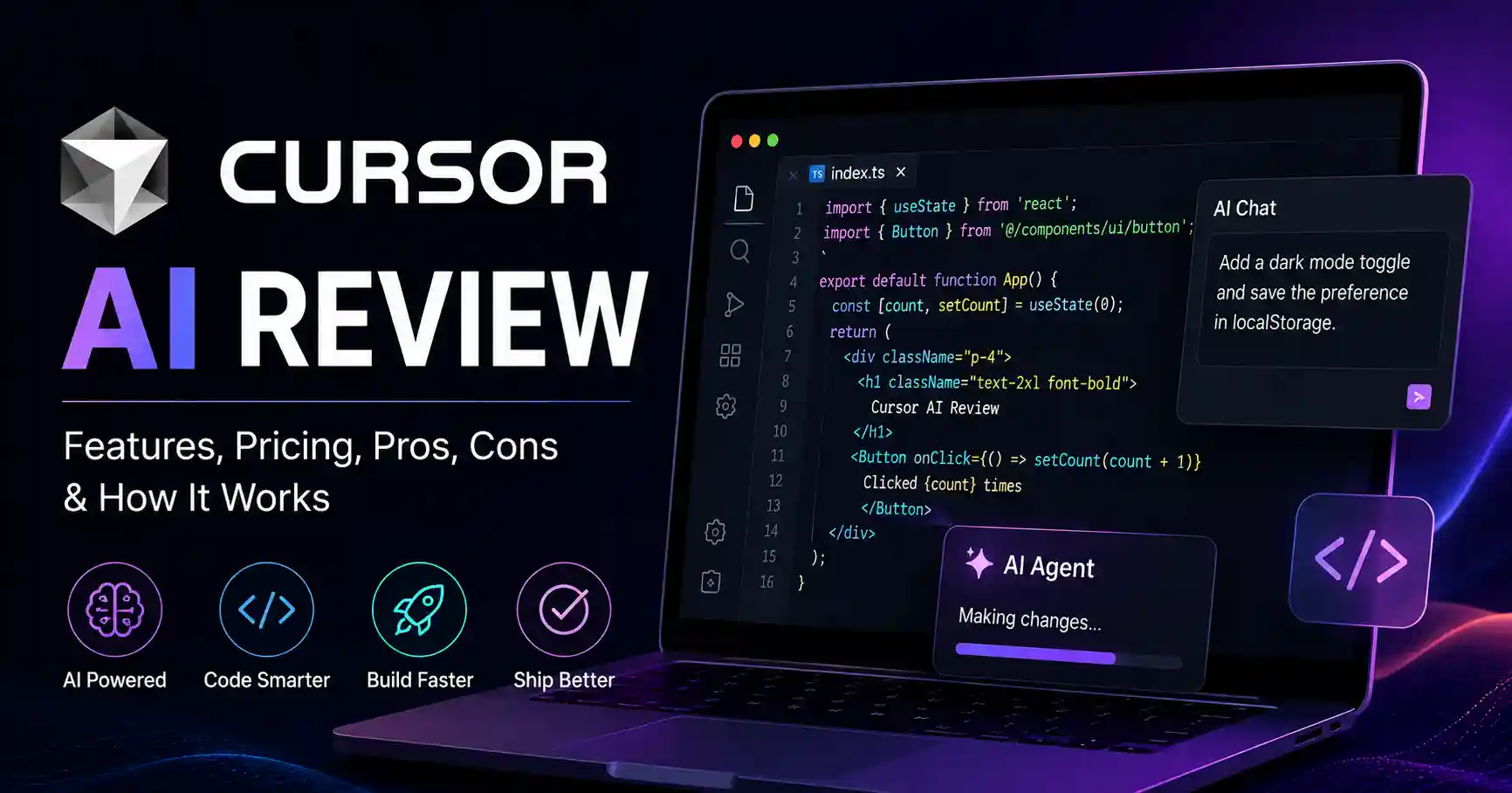
Cursor AI Review: Features, Pricing, Pros, Cons, and How It Works
Published September 2, 2026
Cursor AI Review is useful for developers who want more than basic AI code completion. Cursor is an AI focused code editor that can understand a codebase, edit multiple files, run terminal commands, fix bugs, and help build features from natural language.
The main problem with AI coding tools is not generating code. It is getting useful code that fits an existing project without creating more work.
In this review, I will cover Cursor AI. I will talk about its features and the pricing. I will also share a practical workflow you can follow, plus what it does well, where it falls short, and common mistakes to watch for.
After that, you should be able to judge if Cursor matches how you build software. You will also have a clearer idea of which plan fits your needs.
Table of Contents
What is Cursor AI Review
Why Cursor AI Review is Important
Step by Step Guide
Best Practices and Tips
Common Mistakes
Cursor AI Comparison
Tools
FAQs
Conclusion
What is Cursor AI Review
Cursor is an AI powered code editor designed around agentic software development. Instead of only suggesting the next line of code, its Agent can inspect your project, search files, edit multiple files, execute terminal commands, and work through a coding task.
For example, imagine you have a React application with a broken authentication flow. Instead of manually finding every related file, you can ask Cursor to investigate the login error, identify the relevant components, make the required changes, and run tests.
This makes Cursor different from traditional autocomplete focused coding assistants. Its main value is helping developers work at the task and codebase level.
If you want to explore other developer focused AI products, you can also browse the AI code and developer tools directory.
Why Cursor AI Review is Important
Cursor matters because modern development involves much more than writing individual functions.
Faster feature development by allowing AI agents to handle multi file changes
Better codebase exploration when working with unfamiliar projects
Faster debugging through code search, terminal commands, and iterative fixes
Easier refactoring because Cursor can understand relationships across files
Flexible model selection for teams that want different models for different tasks
Cursor helps a lot when you are stuck with an older project. It is more for reading and editing code that already exists. It works less well as a tool just to produce fresh code from nothing.
Step by Step Guide
Step 1: Install Cursor and Open Your Project
Start by downloading Cursor and opening an existing project or creating a new one.
Once the project is open, allow Cursor to index the relevant codebase. This gives its AI features useful context about your files and project structure.
For a new developer joining an unfamiliar repository, this can be useful because Cursor can explain how different files and components relate to each other.
Step 2: Start With a Specific Request
Avoid prompts such as make my application better.
Give Cursor a concrete engineering objective.
For example, ask it to add email validation to the registration form, create tests for the validation logic, and update the error messages.
A specific request gives the agent a clear scope and makes its output easier to review.
Step 3: Use Agent Mode for Larger Tasks
Cursor Agent can search the codebase, edit several files, execute terminal commands, and work toward completing a task.
For example, you could ask:
Add pagination to the customer dashboard. Keep the existing API structure, update the frontend components, add tests, and run the test suite.
Cursor can then investigate the project and propose or make the required changes.
For larger changes, review the plan before allowing extensive modifications.
Step 4: Review the Changes
Never treat AI generated code as automatically correct.
Review the diff carefully and check whether Cursor changed files that were outside the original scope.
Run your existing tests and inspect important business logic manually.
This matters most in login checks, money transactions, work with databases, user access rules, and safety code.
Step 5: Test and Refine
When Cursor finishes a task, start the app and check the real output.If it does not work, send the error message plus any helpful details back to Cursor.
If a test shows the API is sending the wrong status code, tell Cursor to check that test failure. Have it find what caused the issue, correct the code, and run the test suite again. Do this loop until it passes.
This approach tends to be steadier than pushing for a full solution in a single big ask to an AI agent.
Best Practices and Tips
Give Cursor a clear objective
Describe what needs to change, what should remain unchanged, and how success should be verified.Work in small batches
Large unrelated requests increase the chance of unnecessary changes. Break complex work into logical tasks.Use planning before major changes
For multi file features, ask Cursor to explain its implementation approach before approving the changes.Keep tests close to the workflow
Ask Cursor to create or update tests alongside functional changes instead of treating testing as an afterthought.Review every important diff
AI agents can make technically valid changes that still conflict with your architecture or business requirements.Give useful project context
Project rules, coding conventions, API requirements, and architectural constraints can improve the quality of generated changes.Measure engineering outcomes
Track time saved, bugs introduced, review effort, and completed tasks rather than counting generated lines of code.
Common Mistakes
Accepting AI generated code without reviewing the diff
Giving vague prompts and expecting precise implementation
Allowing the agent to modify too many unrelated files
Forgetting to run tests after AI generated changes
Using powerful models for simple tasks without considering usage costs
Cursor AI Comparison
The current Cursor plans include Hobby, Start for India, Pro, Pro Plus, and Ultra. Cursor Start costs ₹649 per month in India, while Pro is listed at $20 per month.
Takeaway: Start is an attractive low cost option for Indian developers, while Pro is more suitable if you need access to third party models and higher usage limits.
The India specific Start plan also supports INR billing and UPI payments, making it easier for Indian developers to use Cursor without paying the standard international price.
Tools
Cursor fits well when you use it with other developer tools. It plays nicely alongside your usual workflow.
GitHub helps with version history. It also supports pull requests. Teams can work together there. You can also do code reviews through it.
Claude can be useful when you want another strong model for reasoning and complex technical discussions.
Replit is useful when you want a browser based environment for quickly building and deploying applications.
You can compare more coding assistants through the AI developer tools collection and evaluate alternatives before choosing a long term stack.
FAQ’s
Is Cursor AI worth it?
Cursor can be worth it for developers who regularly work on multi file projects, debugging, refactoring, and feature development. Its value is much lower if you only need occasional autocomplete.
Is Cursor AI free?
Yes. Cursor has a free Hobby plan with limited Agent requests and Tab completions. Paid plans provide higher usage and additional capabilities.
How much does Cursor cost in India?
Cursor Start costs ₹649 per month including applicable taxes. Pro is listed at $20 per month before applicable taxes.
Can Cursor write an entire application?
Cursor can handle substantial development tasks, including building features, editing multiple files, running commands, and testing changes. However, developers still need to provide requirements, review the implementation, and validate the final application.
Is Cursor better than a normal code completion tool?
Cursor is designed for a broader workflow than simple code completion. Its Agent can understand a repository, modify multiple files, run commands, and work through larger development tasks.
Conclusion
This Cursor AI Review shows why Cursor has become an important option for AI assisted software development. Its biggest advantage is not simply generating code. It is the ability to work with an entire codebase and help developers move from an engineering request to implementation and testing.
The best way to evaluate Cursor is to use it on a real project. Tackle a tiny bug fix or add one small feature. Time it. See what it saves. Then go back and look at the changes you made, line by line, and make sure everything still looks right.
If you want the current pricing and the newest plan info, open the official Cursor pricing page. Cursor's capabilities and model availability change frequently, so current pricing and usage limits should always be verified before subscribing.
For developers in India, the ₹649 Start plan is particularly worth testing because it provides a lower priced entry point to Cursor's agentic workflow. For heavier professional usage, Pro or higher tiers may make more sense depending on model and usage requirements.